 Agency Memory
HELP + SUPPORT
Set up your workspace. Connect your agent.
Already have a workspace or an MCP key? Follow the steps below to save your first brief, connect your agent, and check that it works.
New to Agency Memory? See how Agency Memory works before you sign up.
Create your first brand.
In the app, open Clients → New client. Enter your client’s name and leave Create a first brand selected. Start with one brand you know well.
Ready when: you can open your brand’s page.
What is the difference between a client and a brand?
A client is the company you work with. A brand has its own positioning, voice, and accounts. Most clients have one brand, created with the client. Give it a different name if needed. For a parent company whose brands you will add later, clear Create a first brand.
Add a short brand brief.
Open Brand Knowledge → Add knowledge. Copy the starter below, fill in what you know, and choose Save knowledge. Mark unknowns clearly; you can improve the brief later.
Your starter brief
Brand:
What we offer:
Who we help:
Why customers choose us:
Voice and writing rules:
Current offer and destination:
Approved facts and sources:
What still needs confirmation:
See a filled example
Northstar Hotels · fictional example
Brand: Northstar Hotels (fictional example)
What we offer: City stays with thoughtful, personal service.
Who we help: Leisure and business travelers who want a central base.
Why customers choose us: Helpful local recommendations and a welcoming team.
Voice and writing rules: Warm and specific. Avoid superlatives and unsupported claims.
Current offer and destination: No confirmed offer. Ask before mentioning a discount.
Approved facts and sources: Use the client-approved brief; confirm factual claims with the client.
What still needs confirmation: Offer dates, rates, and the booking URL.
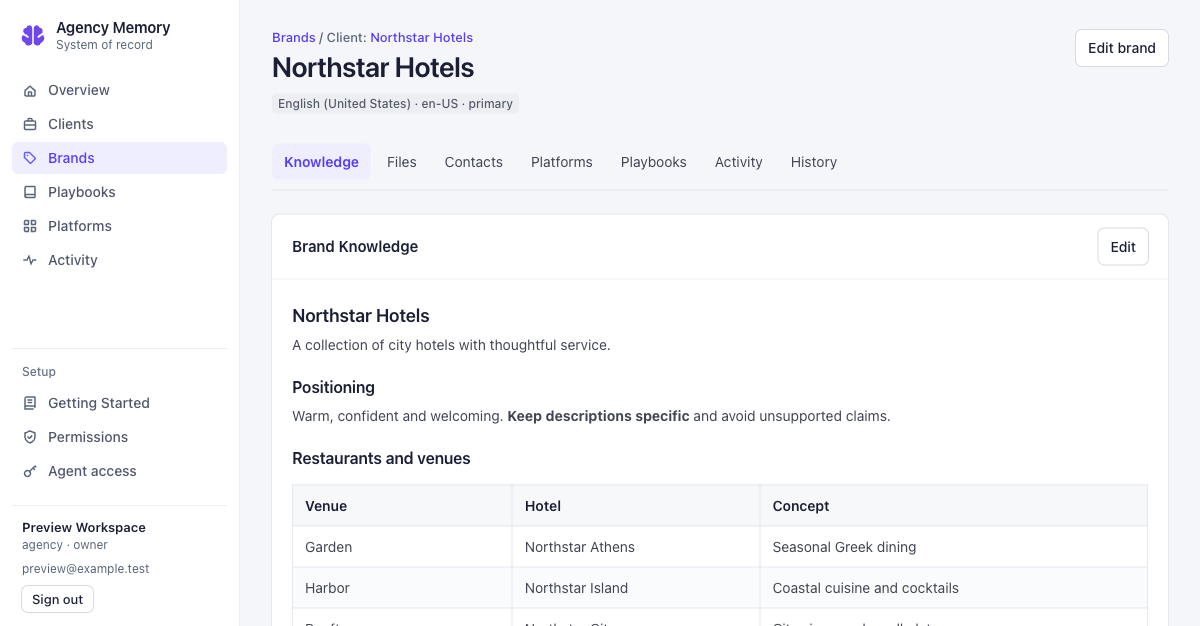
Ready when: your saved brief describes the audience, offer, and writing rules—or clearly marks the missing details.
What should I add later?
Use the full brand brief template when you need more structure. Add Playbooks for recurring processes, Platforms for account and asset identifiers, and private brand files for logos and guides. None is required for this first drafting task.
Connect your agent.
Paste your admin’s prompt into the intended agent and follow its instructions, including any restart. Then check the connection. If you received only a key, choose your agent below and expand its manual setup instructions. You do not need an admin-app login.
Every active MCP key can read all clients and brands in its workspace. Choose an agent you trust with that information. Write controls determine whether it can also change memory.
Check write access for the first run
Use read-only access where appropriate for your first retrieval and drafting task. Owners and admins can still edit through the app.
- Solo mode: in Permissions, the MCP writes switch applies to every MCP key. Turning it off also stops writes from existing connections in this workspace. An individual key’s write toggle is not used in this mode.
- Agency mode: each MCP key has its own Can edit memory setting. Leave it off for a read-only connection.
Check the mode shown in Permissions. Allowed memory changes apply directly, without an approval queue. These settings do not grant advertising permissions or authorize spending.
Owners and admins: create an MCP key
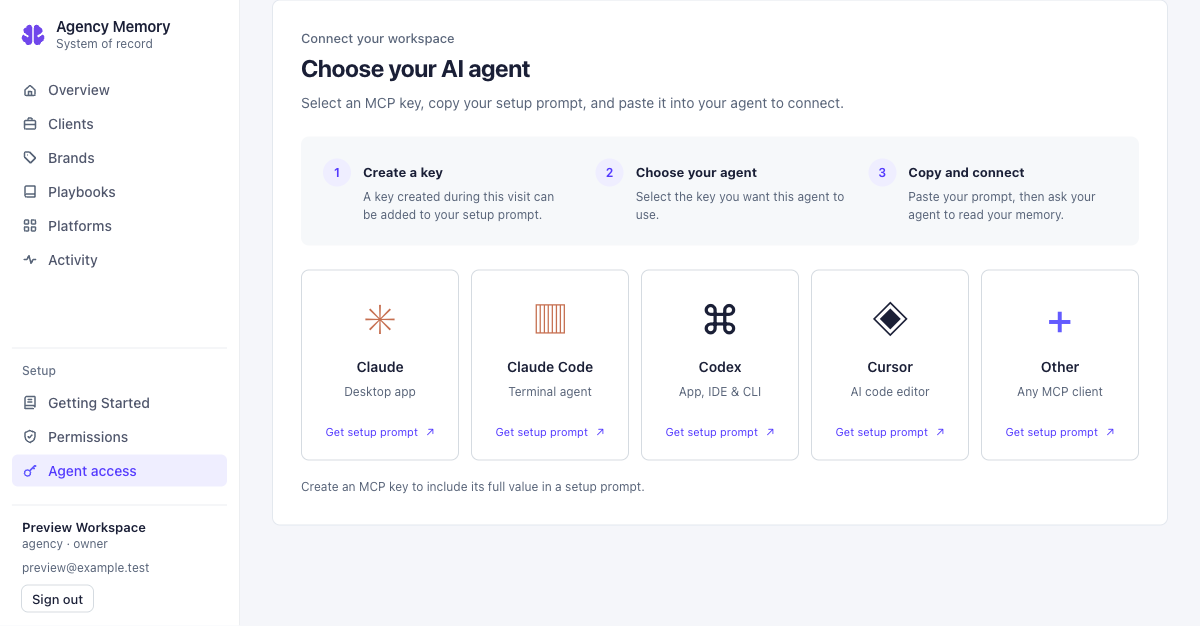
- Open Agent access → Create MCP Key.
- Enter the user’s name and a label, such as Alex — laptop agent. Use a separate key for each person or connection.
- Copy and privately save the full key when shown. Keep Agent access open while choosing your agent and copying its setup prompt.
Claude Desktop
In Agent access, choose Claude (Desktop app), select the key you just created, and choose Copy prompt. Paste it into Claude Desktop and follow the setup instructions.
Only have an MCP key? Use manual setup instructions
Copy the template below. In your chosen agent, privately replace YOUR_MCP_KEY with the full key your admin supplied. You do not need an admin-app login. Never enter your key on this public page.
Claude Desktop setup template
Connect Claude Desktop to Agency Memory.

Server name: agency-memory
MCP URL: https://api.agencymemory.ai/mcp
Transport: Streamable HTTP
Authentication: Authorization: Bearer YOUR_MCP_KEY

Use a local mcp-remote bridge for Claude Desktop so the connection sends the Authorization header. Preserve existing MCP servers, explain any Node.js requirement, and tell me how to fully quit and reopen Claude Desktop. Do not substitute a browser OAuth connection.

Use the MCP key only for this connection. Keep it out of source control and do not echo it in your response. Do not place it in the URL. Configure the connection directly if you can access the settings; otherwise provide exact manual steps.

After reloading, make a read-only request to list my clients and brands. Report the returned result or exact error. Do not create or change records during setup.
Claude Code
In Agent access, choose Claude Code, select the key you just created, and choose Copy prompt. Paste it into Claude Code and follow the reload instructions.
Only have an MCP key? Use manual setup instructions
Copy the template below. In your chosen agent, privately replace YOUR_MCP_KEY with the full key your admin supplied. You do not need an admin-app login. Never enter your key on this public page.
Claude Code setup template
Connect Claude Code to Agency Memory.

Server name: agency-memory
MCP URL: https://api.agencymemory.ai/mcp
Transport: Streamable HTTP
Authentication: Authorization: Bearer YOUR_MCP_KEY

Configure Claude Code with a remote HTTP MCP server in my private user configuration. Preserve existing servers, send the Authorization header, and explain how to restart the session and check the connection.

Use the MCP key only for this connection. Keep it out of source control and do not echo it in your response. Do not place it in the URL. Configure the connection directly if you can access the settings; otherwise provide exact manual steps.

After reloading, make a read-only request to list my clients and brands. Report the returned result or exact error. Do not create or change records during setup.
Codex
In Agent access, choose Codex, select the key you just created, and choose Copy prompt. Paste it into Codex and follow the setup instructions for your app, IDE, or CLI.
Only have an MCP key? Use manual setup instructions
Copy the template below. In your chosen agent, privately replace YOUR_MCP_KEY with the full key your admin supplied. You do not need an admin-app login. Never enter your key on this public page.
Codex setup template
Connect Codex to Agency Memory.

Server name: agency-memory
MCP URL: https://api.agencymemory.ai/mcp
Transport: Streamable HTTP
Authentication: Authorization: Bearer YOUR_MCP_KEY

Configure Codex with a remote HTTP MCP server and a bearer-token environment variable. Keep the key in a private secret store or local environment, preserve existing servers, and make the variable available to the process that launches Codex. Explain any app, IDE, or CLI reload needed.

Use the MCP key only for this connection. Keep it out of source control and do not echo it in your response. Do not place it in the URL. Configure the connection directly if you can access the settings; otherwise provide exact manual steps.

After reloading, make a read-only request to list my clients and brands. Report the returned result or exact error. Do not create or change records during setup.
Cursor
In Agent access, choose Cursor, select the key you just created, and choose Copy prompt. Paste it into Cursor and enable the connection when instructed.
Only have an MCP key? Use manual setup instructions
Copy the template below. In your chosen agent, privately replace YOUR_MCP_KEY with the full key your admin supplied. You do not need an admin-app login. Never enter your key on this public page.
Cursor setup template
Connect Cursor to Agency Memory.

Server name: agency-memory
MCP URL: https://api.agencymemory.ai/mcp
Transport: Streamable HTTP
Authentication: Authorization: Bearer YOUR_MCP_KEY

Configure Cursor with a remote HTTP MCP server and the Authorization header in my private user configuration. Preserve existing servers, keep the key outside shared project files, and explain how to enable and reload the connection.

Use the MCP key only for this connection. Keep it out of source control and do not echo it in your response. Do not place it in the URL. Configure the connection directly if you can access the settings; otherwise provide exact manual steps.

After reloading, make a read-only request to list my clients and brands. Report the returned result or exact error. Do not create or change records during setup.
Other MCP client
In Agent access, choose Other, select the key you just created, and choose Copy prompt. Give it to your MCP-capable agent and follow its client-specific instructions.
Only have an MCP key? Use manual setup instructions
Copy the template below. In your chosen agent, privately replace YOUR_MCP_KEY with the full key your admin supplied. You do not need an admin-app login. Never enter your key on this public page.
Other MCP client setup template
Connect my MCP client to Agency Memory.

Server name: agency-memory
MCP URL: https://api.agencymemory.ai/mcp
Transport: Streamable HTTP
Authentication: Authorization: Bearer YOUR_MCP_KEY

Identify my MCP client and its supported configuration format. Use Streamable HTTP and the Authorization header, preserving existing servers. If the client supports only local stdio servers, explain the local bridge required. If it cannot send bearer headers, explain the compatibility limitation instead of attempting an OAuth connection.

Use the MCP key only for this connection. Keep it out of source control and do not echo it in your response. Do not place it in the URL. Configure the connection directly if you can access the settings; otherwise provide exact manual steps.

After reloading, make a read-only request to list my clients and brands. Report the returned result or exact error. Do not create or change records during setup.
Lost the key or left the screen?
The app cannot retrieve a saved key’s full secret. Its setup-prompt picker can use only keys created during the current visit to Agent access. If you privately saved the full key, use the manual template above. Otherwise, ask an admin to create a replacement, update your connection, and revoke the superseded key.
Check that the connection works
After reloading your agent, run this read-only check:
Connection check
Use the Agency Memory MCP to list my clients and brands. Report what the server returned, or the exact connection error. Do not create or change any records.
Connection confirmed: the agent successfully retrieves your client and brand list. An empty list is valid for an empty workspace; if you created a brand in step 1, check that it appears. A saved configuration or visible tool list alone is not the check.
Try your first task.
Replace [brand name] in the prompt with the brand you prepared. Ask your agent to retrieve the brief before drafting.
Try a campaign briefing task
Retrieve the current Brand Knowledge for [brand name] from Agency Memory. Summarize the audience, offer, and voice rules you will use. Flag missing facts. Draft three campaign message directions using that context. Return drafts for review; do not update memory or publish anything.
Check the audience, offer, claims, and tone against the saved brief. Review the drafts before using them.
Prove you can reuse the brief in a fresh conversation
Start a new conversation without pasting the brief. Replace [brand name], then run:
Fresh-conversation check
Retrieve the current Brand Knowledge for [brand name] from Agency Memory. Tell me three writing rules or constraints from the saved brief and flag anything still needing confirmation. Do not create or change any records.
Compare the returned rules with your saved brief. This verifies that the new conversation retrieved your maintained context.
You’re done when…
- Your brief is saved under the correct brand.
- Your agent has successfully retrieved it through MCP.
- You have a useful draft that reflects the brief and identifies missing facts.
Need a hand?
Sign-in or workspace access
Owners and admins sign in at app.agencymemory.ai with their work email and the emailed sign-in link. If you cannot access a workspace, contact its owner. Teammates using an MCP key do not need an admin-app login. If you are new to Agency Memory, start with the overview.
Authentication, compatibility, or refused updates
- Authentication error: use the full active MCP key, sent in the Authorization header.
- Tools appear but a request fails: reload the agent, repeat the read-only check, and record the exact error.
- Only OAuth is available: a browser chat may not support this bearer-key connection. Use a compatible client; Claude Desktop uses a local MCP bridge.
- Memory update refused: ask an admin to check the effective write setting. Do not keep retrying a denied write.
Email [email protected] with your agent name and a redacted error message. Never include your MCP key.
ONE BRAND. ONE USEFUL TASK.
Put your first brief to work.
Open your workspace and try the first task. You can build out Playbooks and platform details as your workflows grow.